Initial Zitadel Setup
This topic explains how first-time users can complete their initial setup to log in to Waterfall using Zitadel authentication.
Overview
Waterfall now uses Zitadel for secure login and 2-Factor authentication. This means:
• Enhanced security for your account.
• A simple and consistent login experience.
Invitation Email
If you have been migrated to Zitadel, you will receive an invitation email from sso@mobilecommons.com.
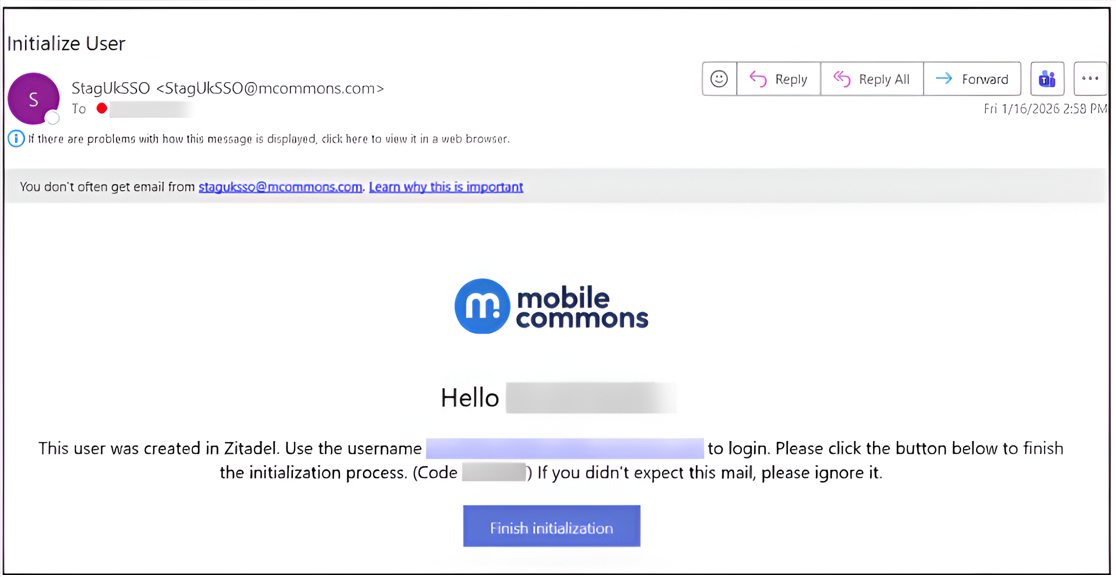
1. Click Finish initialization in the invitation email to complete the initialization process.
2. After you click Finish initialization, you are redirected to the Activate User page to create a new password. The code is copied automatically when you click this button.
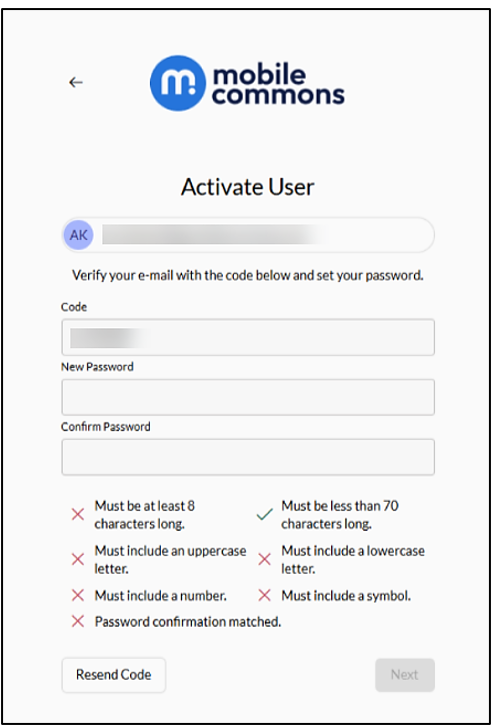
3. Once you have entered your new password, click Next. Skip to Step 9.
Note: If you have missed the invitation email, you can follow the standard Waterfall login process (see steps 4-8).
4. Go to the Waterfall login page.

5. Enter your username or email address.
6. Click NEXT.
You are redirected to the Zitadel authentication page (if you have been migrated).
7. Enter your Waterfall username.
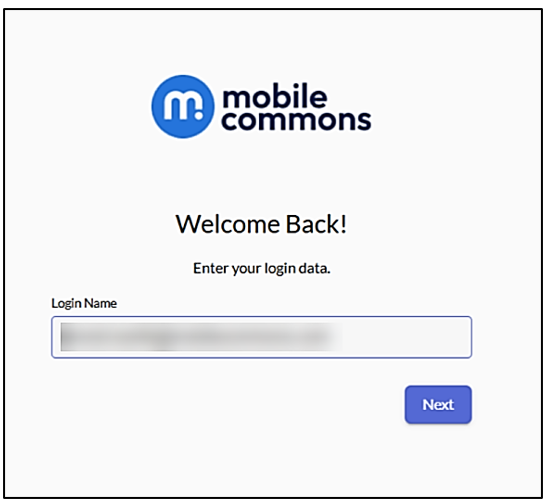
8. Click Next. To receive a new code, click Resend Code at the bottom-left of the page. The code will be sent to your email address. Now enter a new password along with the new activation code sent to you by email, and click Next.
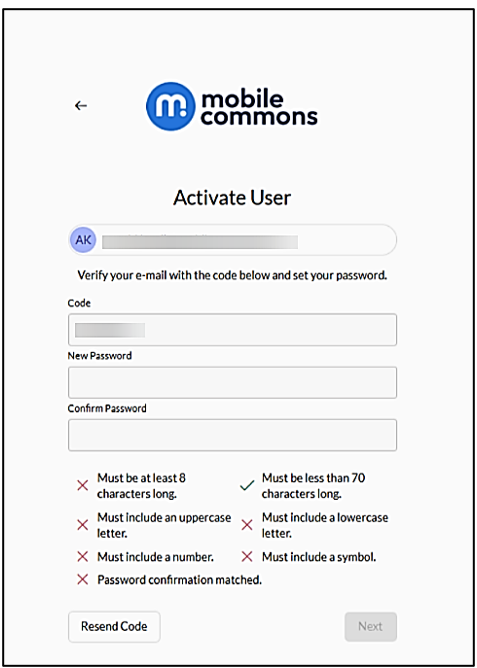
9. After successful verification, a confirmation message appears: “Email verified and Password successfully set.”
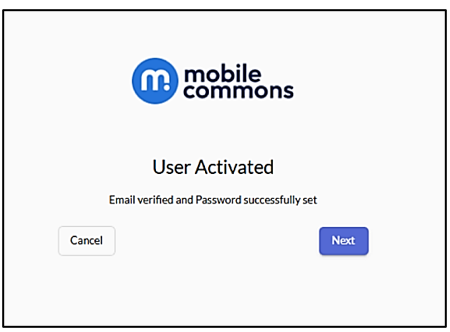
10. Click Next.
11. Enter the password you just created in the Password field.
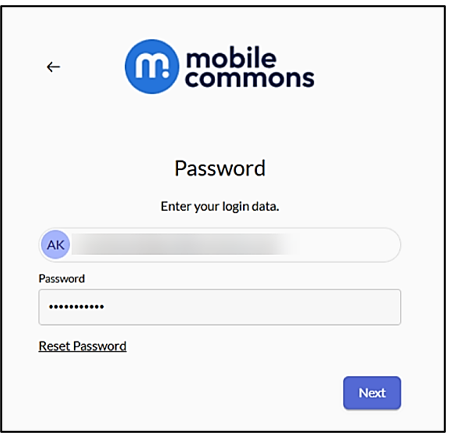
12. Click Next.
13. To set up 2-Factor, select your preferred authentication method. We recommend you select the Authenticator App option.
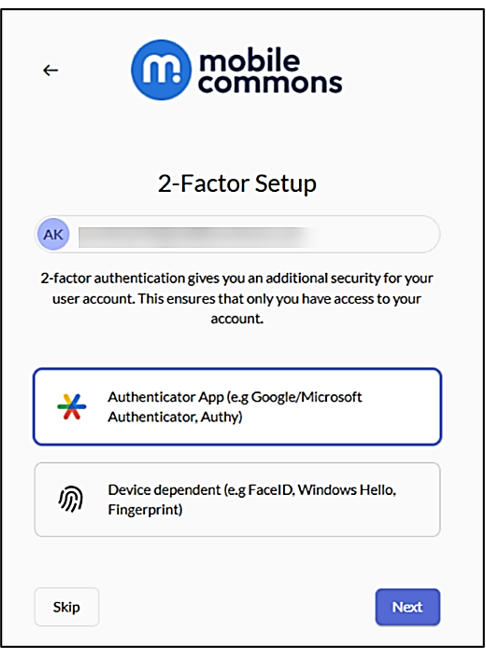
14. Click Next.
15. Download your preferred authenticator app (for example, Microsoft/Google Authenticator app). For 2-Factor verification, enter the verification code from your selected authenticator application. You can also scan the code with your authenticator application or copy the secret and insert the generated code in the Code field.
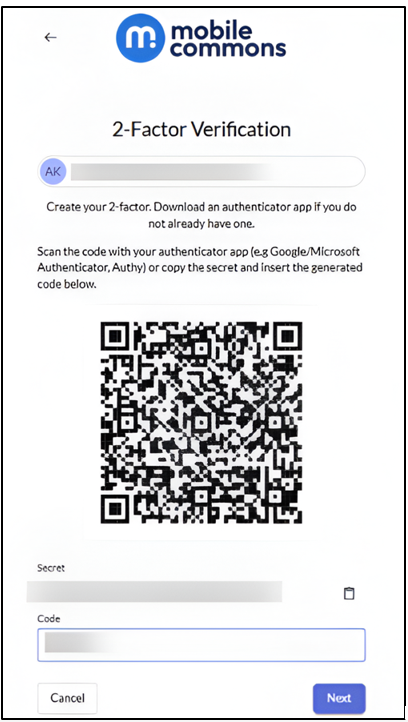
After successful 2-Factor verification, the initial 2-Factor setup is complete.
16. Click Next.
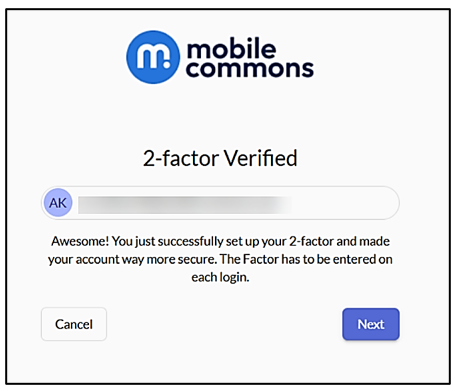
You’ll be redirected to Waterfall login page.
If you're unable to log in via Zitadel authentication, contact the Waterfall Support team.